Showing posts with label AIA. Show all posts

Thursday, December 6, 2012

ORABPEL-05250 Error

I faced ORABPEL-05250 error during my composite deployment with below message.


[08:54:32 AM] Error deploying archive sca_QueryCommitmentDetailsBRMCommsProvABCSImpl_rev1.0.jar to partition "default" on server soa_server1 [http://myserver:8001]
[08:54:32 AM] HTTP error code returned [500]
[08:54:32 AM] Error message from server:
There was an error deploying the composite on soa_server1: Deployment Failed: Error occurred during deployment of component: QueryCommitmentDetailsBRMCommsProvABCSImpl to service engine: implementation.bpel, for composite: QueryCommitmentDetailsBRMCommsProvABCSImpl: ORABPEL-05250


BPEL Document provides below explanation for error code ORABPEL-05250, but this information is generic and insufficient for analysis.

ORABPEL-05250
severity: 10
type: error
name: Error deploying BPEL suitcase
description: An error occurred while attempting to deploy the BPEL
suitcase file \"{0}\"; the exception reported is: {1}
To rectify this problem, you need to increase the log level and need to analyze the problem from the log file step by step.

Increase loglevel to debug mode.
  • Oracle 10g: default.collaxa.cube.engine.deployment set it to ‘debug’
  • Oracle 11g: oracle.soa.bpel.engine.deployment set it to ‘TRACE:32 (FINEST)’
I used 11g, so referred soa_server1.log and soa_server1.out to debug, after receiving deployment error. I found detailed error message in soa_server1.out as below.


This error got escaped during compilation in Jdeveloper and it was strange partnerLinkType and role in wsdl is proper and it is same as what is provided in .bpel file partnerlink element.
I changed the partnerRole and partnerLinkType name both in .bpel and wsdl file and redeployed the composite. Now no error, problem got resolved.

ORABPEL-05250 error can occur for number of reasons like ‘disk memory full’, ‘XSD / WSDL imports are unavailable or unreachable’ etc., proper analysis of log file will help out in resolving this problem.

Sunday, January 29, 2012

Issues and Solutions - Part I

Issue: javax.naming.NameNotFoundException: ejb_ob_engine_DeliveryBeanLocal not found

Solution: InvocationMode property should be removed from bpel.xml or composite.xml, otherwise InvocationMode property should be set in all bpel and esb processes involved in same transaction.

----------------------------------------------------------------------------------------------------------------

Issue: Oracle ESB crossreference, populateXRefRow is not populating the data in xref table


Solution: populateXRefRow doesn't populate the cross reference data if the process is failed, cross reference entry will be rolled back after the process failure. Ensure process gets completed successfully to view the cross reference data.

Wednesday, April 21, 2010

Deploy JCA BRM Adapter and Create Connection Factory

This post helps in deploying the JCA BRM Adapter and Creating the connection factory in Oracle Application Server.

Deploy JCA BRM Adapter

1. Stop Application Server.

Edit application.xml file as shown below.

<import-shared-library name="oracle.bpel.common"/> tag

inside <imported-shared-libraries> tag into the following file.

<SOA_HOME>/j2ee/oc4j_soa/config/application.xml.

After adding into the application.xml it will look like this.

<!-- Comment this if you don't want to access OracleAS JMS via
the JCA framework
-->
<resource-provider class="com.evermind.server.jms.Oc4jResourceProvider"
name="oc4jjms">
<description>oc4j-jms loop back resource provider</description>
<property name="dummy" value="dummy"/>
</resource-provider>
<imported-shared-libraries>
<import-shared-library name="adf.oracle.domain"/>
<import-shared-library name="oracle.bpel.common"/>
</imported-shared-libraries>

</orion-application>

2. Start Application Server:

Without this entry BRM Adapter installation will get failed. But after successful installation of BRM adapter we have to remove this entry or else none of the BPEL or ESB processes will get loaded.

3. Deploy using Application Server Control

i) Open the AS main page, and navigate to Application Server Control (http://hostname:port/)
ii) Select the instance oc4j_soa (container where the application or AIA is running).
iii) Select Application to see the list of deployed applications
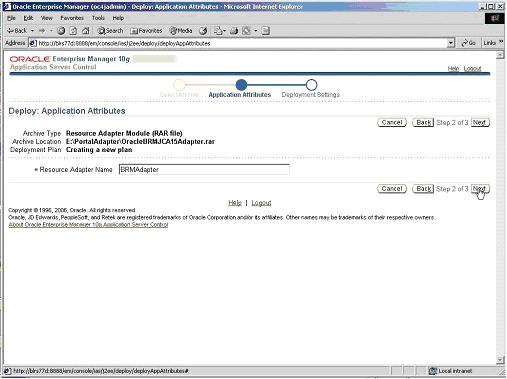
iv) Click on deploy to deploy the BRM Adapter
v) Select Adapter RAR file (OracleBRMJCA15Adapter.rar) get this rar file from BRM Administrator.


vi) Specify a valid name (name should not contain spaces, special characters etc) then click on next.


vii) Click on Deploy, optionally you can save the Deployment plan by clicking "Save Deployment Plan" and specifying a path for the .dat file.


viii) Click Return, Once the adapter is deployed successfully.


Create Private Connection Factory


1) Click on create to create the connection factory.


2) Click on Continue


3) Set JNDI location to eis/BRM and check Use Private Connection Pool. Also provide the BRM server details(Connection String).


4) Click Finish

BRM Adapter Post Installation Tasks

1) Stop Application Server and remove entry as below from application.xml

<SOA_HOME>/j2ee/oc4j_soa/config/application.xml file

<import-shared-library name="oracle.bpel.common"/>

2) Add below highlighted entry in oc4j-ra.xml of BRMAdapter which can be found at following location.

<SOA_HOME>/j2ee/oc4j_soa/application-deployments/default/BRMAdapter.

After adding into the oc4j-ra.xml it should look as shown below

<connector name="BRMAdapter" path="BRMAdapter.rar">
</connector>

<oc4j-connector-factories xmlns:xsi="http://www.w3.org/2001/XMLSchema-instance" xsi:noNamespaceSchemaLocation="http://www.oracle.com/technology/oracleas/schema/oc4j-connector-factories-10_0.xsd" schema-major-version="10" schema-minor-version="0" >
<imported-shared-libraries>
<import-shared-library name="oracle.bpel.common"/>
</imported-shared-libraries>
<connector-factory location="eis/BRM" connector-name="BRMAdapter">
<config-property name="ConnectionString" value="ip hostname 12006"/>
<config-property name="DBNumber" value="1"/>
<config-property name="PoidID" value="1"/>
<config-property name="ServiceType" value="/service/pcm_client"/>
<config-property name="LoginType" value="1"/>
<config-property name="UserName" value="root.0.0.0.1"/>
<config-property name="Password" value="&aes|08|0D5E11BFDD97D2769D9B0DBFBD1BBF7E5D40C305EDF3D77DF111AAB8F781E92122"/>
<config-property name="InputValidation" value="false"/>
<config-property name="OutputValidation" value="false"/>
<connection-pooling use="private">
<property name="waitTimeout" value="300" />
<property name="scheme" value="fixed_wait" />
<property name="maxConnections" value="50" />
<property name="minConnections" value="0" />
</connection-pooling>
<security-config use="none">
</security-config>
<connectionfactory-interface>oracle.tip.adapter.api.OracleConnectionFactory</connectionfactory-interface>
</connector-factory>
</oc4j-connector-factories>

3) Start the server again

Monday, April 19, 2010

How to change the end system(Siebel/BRM) in AIA for Communication PIP

This document helps in changing system (Siebel/BRM) of AIA for Communication PIP. This document limited only to the configuration changes in AIA and FMW to point to new end systems.


1. Prerequisites

Collect below end system information before making the changes.

Siebel :
Hostname :
PortNo :
UserName :
Password :
PriceList Id:

Siebel JMS DB Connection :
JMS Username :
JMS Password:
TNS entry of JMS Queue(DB Hostname and SID) :

BRM
Hostname :
Port :
Username:
Password:
DB Hostname:
DB Port:
DB SID:

2. AIAConfigurationProperties

Take a backup of AIAConfigurationProperties.xml located at <AIA_HOME>/config/ and start editing below datas for end system change.

Change Siebel Endpoint URI and PriceList.

<Property name="Routing.Target.Default.SiebelProductService.EndpointURI">Siebel_URI</Property>
<Property name="Siebel.PriceList.ID">1-260Z</Property>


3. Application XML Change

Make a copy of Application.xml at location <SOA_HOME>/j2ee/oc4j_soa/config/ and edit Application.xml by pasting below entries with changed values.

Siebel AIA DBConnect jms resource provider

<resource-provider name="DBConnect1" class="oracle.jms.OjmsContext">
<description>Siebel AIA DBConnect jms resource provider</description>
<property name="password" value="jmsuser" />
<property name="username" value="jmsuser" />
<property name="url" value="jdbc:oracle:oci:@(Description=(ADDRESS_LIST=(ADDRESS=(PROTOCOL=TCP)(HOST=HOST_NAME)(PORT = 1521)))(CONNECT_DATA=(SERVICE_NAME=service_name)))" />
</resource-provider>

4. BRMAdapter Change

Make a copy of oc4j-ra.xml at location <SOA_HOME>/j2ee/oc4j_soa/application-deployments/default/BRMAdapter/ and edit the oc4j-ra.xml with values that you need to change for the BRM system.

<config-property name="ConnectionString" value="ip 10.62.5.10 40115"/>
<config-property name="DBNumber" value="1"/>
<config-property name="PoidID" value="1"/>
<config-property name="ServiceType" value="/service/pcm_client"/>
<config-property name="LoginType" value="1"/>
<config-property name="UserName" value="root.0.0.0.1"/>

5. Data Source Change


Make a backup of data-sources.xml at location <SOA_HOME>/j2ee/oc4j_soa/config and edit the file by making changes in PortalEvenAQPool with provided BRM inputs.

<connection-pool name="PortalEventAQPool">
<connection-factory factory-class="oracle.jdbc.pool.OracleDataSource" user="pin15" password="pin15" url="jdbc:oracle:thin:@HOST_NAME:1521:SID" commit-record-table-name=""/>
</connection-pool>

6. AIA Console Change

Login to AIA console http://fmw_server:7777/AIA

1) Click on Setup
2) Click on System
3) Change the endsystem connectivity